


“Myterry Map” is a feature that allows you to view all of your Myterries on the map. You can see not only the Myterries you currently own, but also those that have been lost due to the expiration of their maintenance period.
How to go to Myterry Map
After logging in, tap the “Myterry Map” icon located in Activity History > Acquired Myterries.
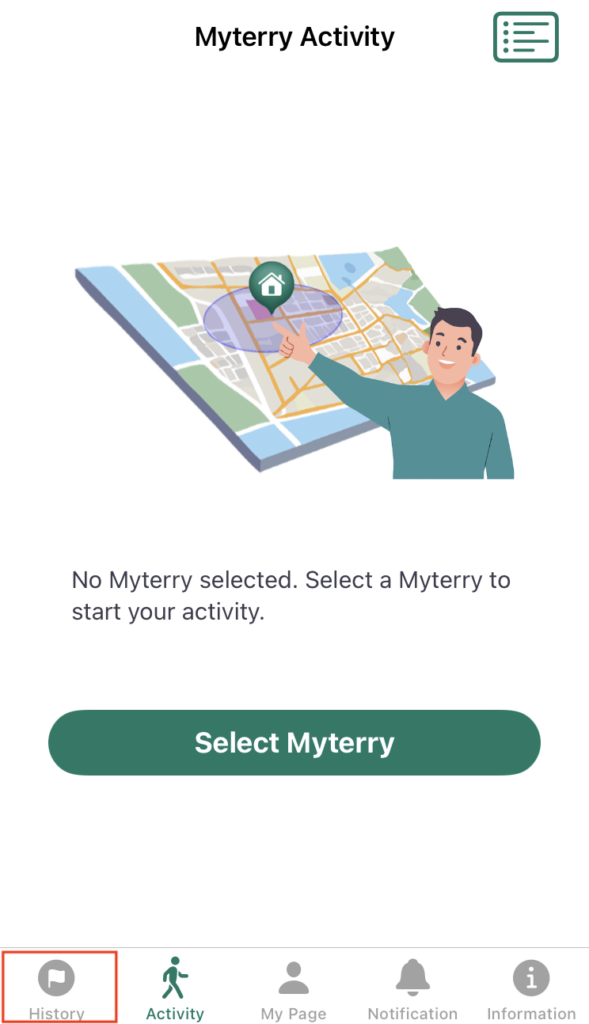
After signing in, tap “Activity History.”
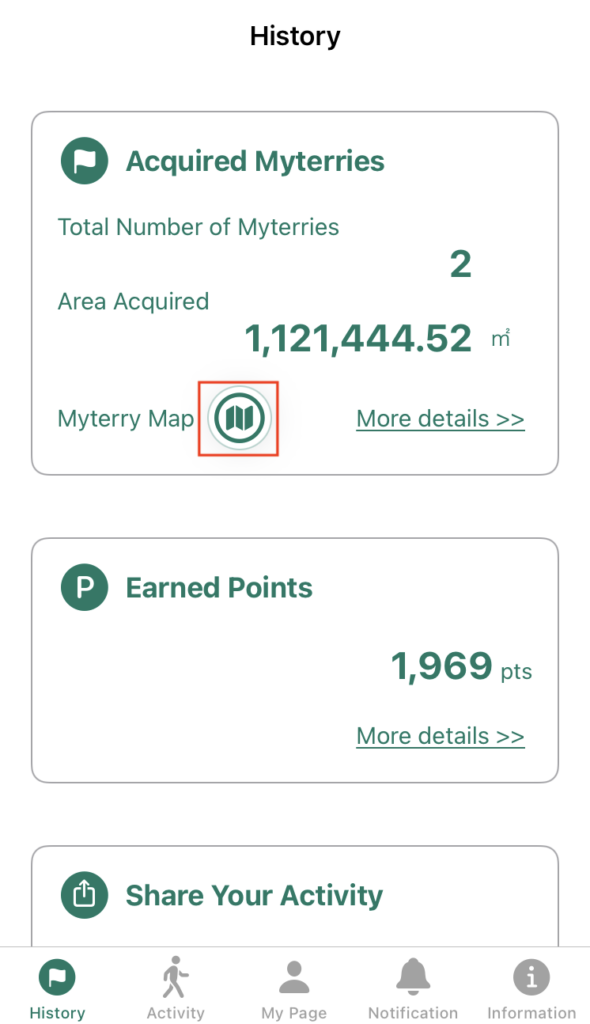
Tap the map icon to open the Myterry Map, which is located under “Acquired Myterries” in “Activity History.”
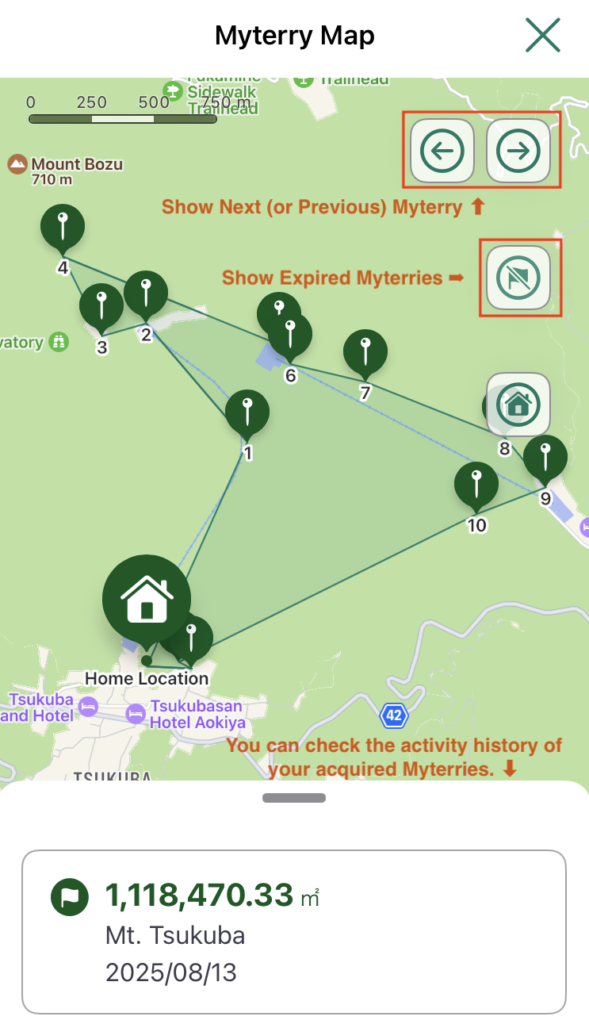
1. Next / Previous Icons
The arrow icons in the upper right of the screen allow you to move to the next or previous item. Myterries are displayed in order from the oldest activity.
2. Expired Icon Tap
This displays expired Myterries on the map. The map icon will be shown in gray.
3. Activity History
You can view the activity history of the selected Myterry. Adjusting the slider up or down allows you to change how much of the activity history is displayed. For details on the displayed content, refer to “Activity Record Details” in the Activity History menu.
How to Use
- Creating Your Account
- Reset or Change Password
- Main Menus
- Myterry Activities
- Myterry Features
- Points
- Delete Account