


This section explains the various menus available during a Myterry activity.
Myterry Activity Tutorial
When you first start a Myterry activity, a tutorial is enabled that explains the on-screen display items and action icons.
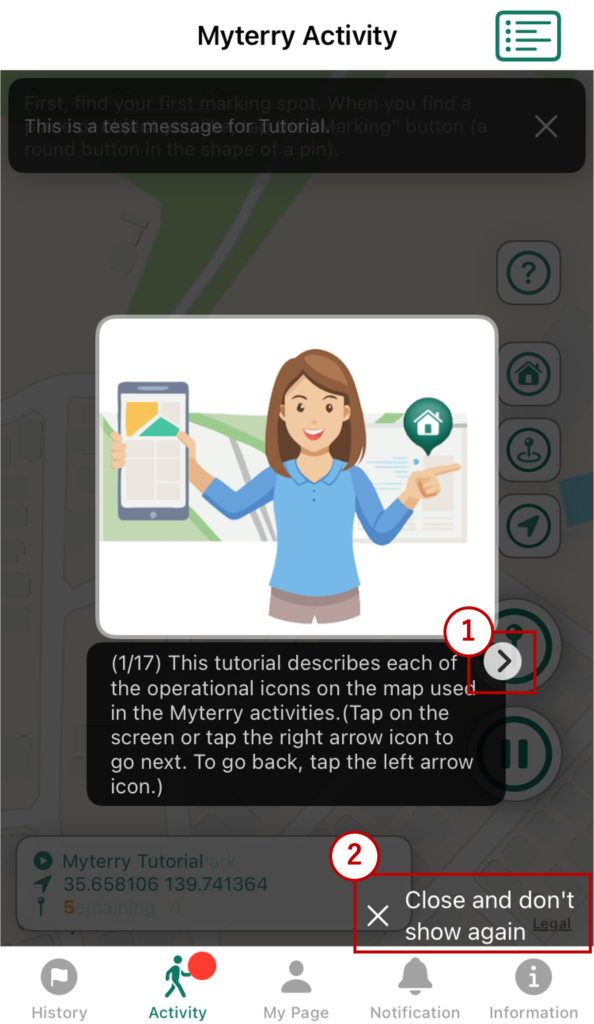
1. Next (/ Previous)
Tap the forward arrow icon (upper right) to proceed to the next explanation, or the back arrow icon (upper left) to return to the previous one.
2. Close and Don’t Show Again
Tap this to close the tutorial. It will no longer appear during Myterry activities. However, you can display it again at any time by tapping the “Help” icon.
Display Items and Action Icons
Myterry Acquisition Activity
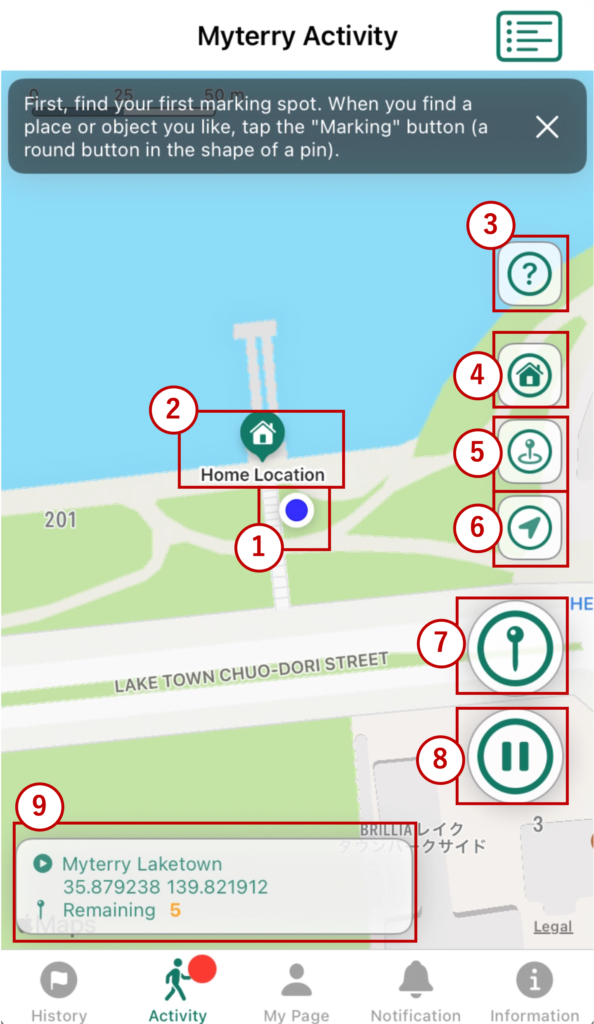
1. Current Location
Once the activity starts, your current location is displayed on the map. As you move toward your desired marking spot, this position updates. The map view also re-centers on your position with each update.
2. Home Location
Indicates the starting point of your Myterry activity. You must return here to complete the activity. The area enclosed by your placed pins and this location forms the acquired territory.
3. Help
Displays the “Tutorial“.
4. Home Location
Centers the map on your home location.
5. Activity Radius
Displays the activity radius from the home location set for this Myterry on the map. Each tap toggles it on (visible) or off (hidden).
6. Current Location Display
Each tap toggles it on (visible) or off (hidden). When off, your location on the map stops updating and the screen no longer re-centers. Use this when you want to scroll the map to check another area.
7. Marking
Performs a marking action. Specifically, this launches the camera so you can photograph the location and mark it (by placing a circle on the captured image).
8. Action

Resume
Resumes an activity that was previously interrupted.

Suspend
Suspends the current Myterry activity. Time spent while suspended is not counted.

Finish
Ends the Myterry activity. This button appears once all pins have been placed.
9. Current Status Box
Displays the name of the active Myterry, your current position (latitude/longitude), and the number of remaining markings.
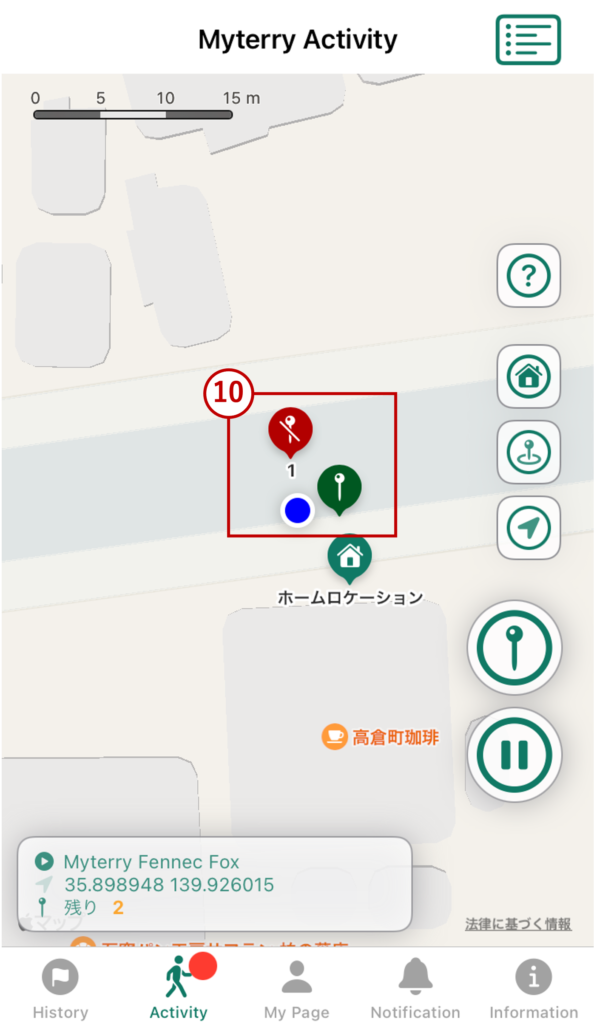
10. Marking Pin Display
The number on each pin indicates the order in which it was marked.

Valid
Indicates a successful marking. The pin is counted and deducted from the remaining pin count.

Invalid
Indicates a failed marking. This occurs when the captured image does not meet the registration criteria. In this case, the pin is not deducted from the remaining count.
Myterry Maintenance Activity
Only the differences from the “Myterry Acquisition Activity” are described here.
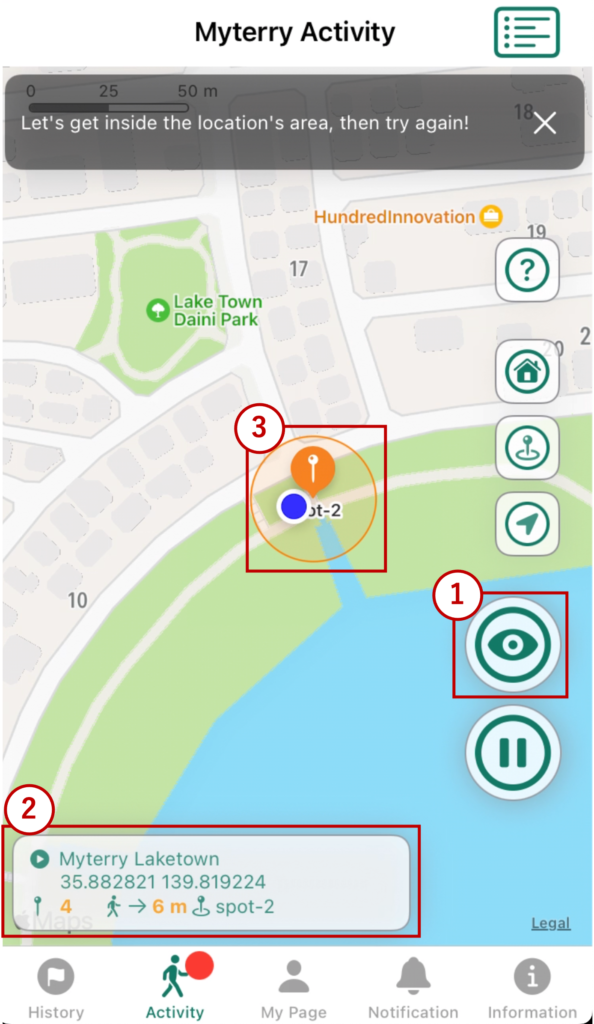
1. Check
Tap this while near a previously marked location (within the “Valid Spot,” i.e., the circle around the placed pin) to confirm the marking.
2. Current Status Box
In addition to the active Myterry name, current position (latitude/longitude), and remaining marking count, this also displays the distance to the next marking location.
3. Placed Pin
Indicates where a marking has been placed. The number on each pin shows the order in which it was marked.
The next placed pin to visit will display a “Confirmation Valid Spot” (a circle around the pin). You must perform the confirmation action from within this circle.
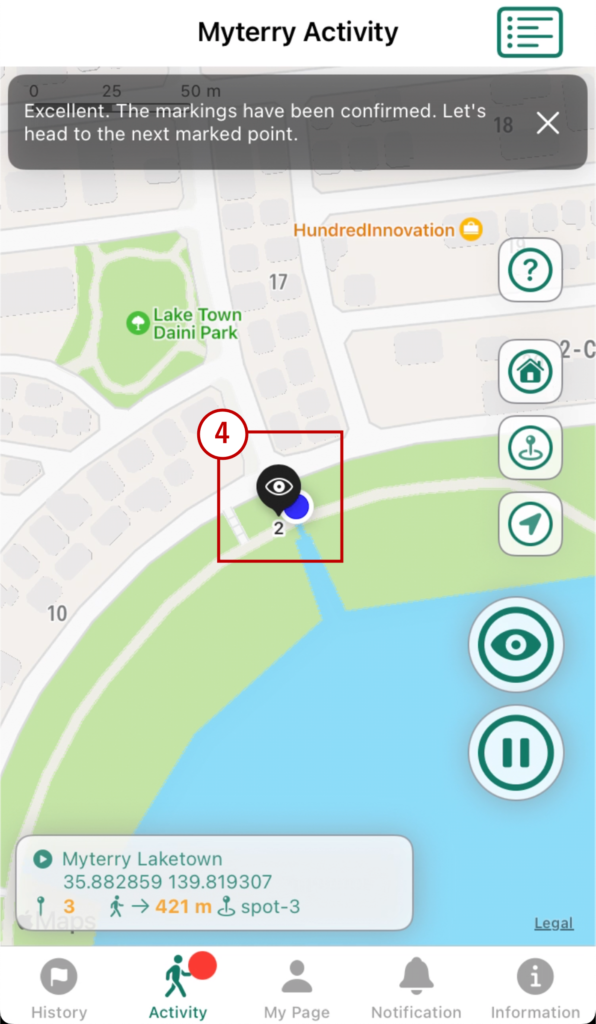
4. Marking Confirmed
Indicates the state of a pin after the “Confirm” action has been successfully completed.
How to Use
- Creating Your Account
- Reset or Change Password
- Main Menus
- Myterry Activities
- Myterry Features
- Points
- Delete Account