

This page explains the two main components of Myterry activities. Both are essential for earning Myterry points, and you must perform them regularly to avoid losing your points.
Activities to Acquire Myterry
Place pins (markers) at the home locations you’ve set to acquire your territory, creating a territory enclosed by those pins. You can then acquire the resulting territory as your “Myterry.”
1. Find your favorite spot
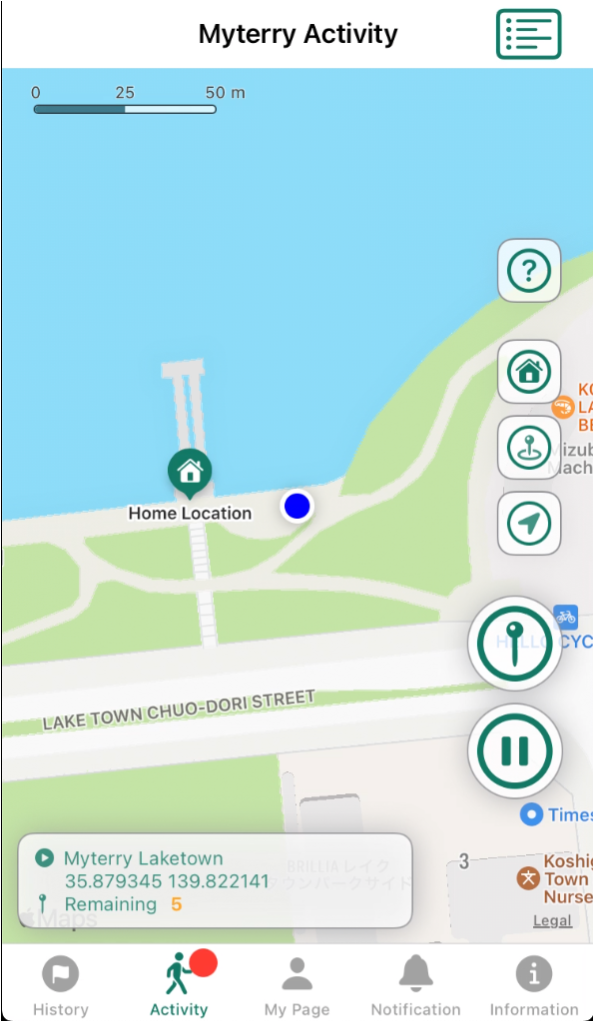
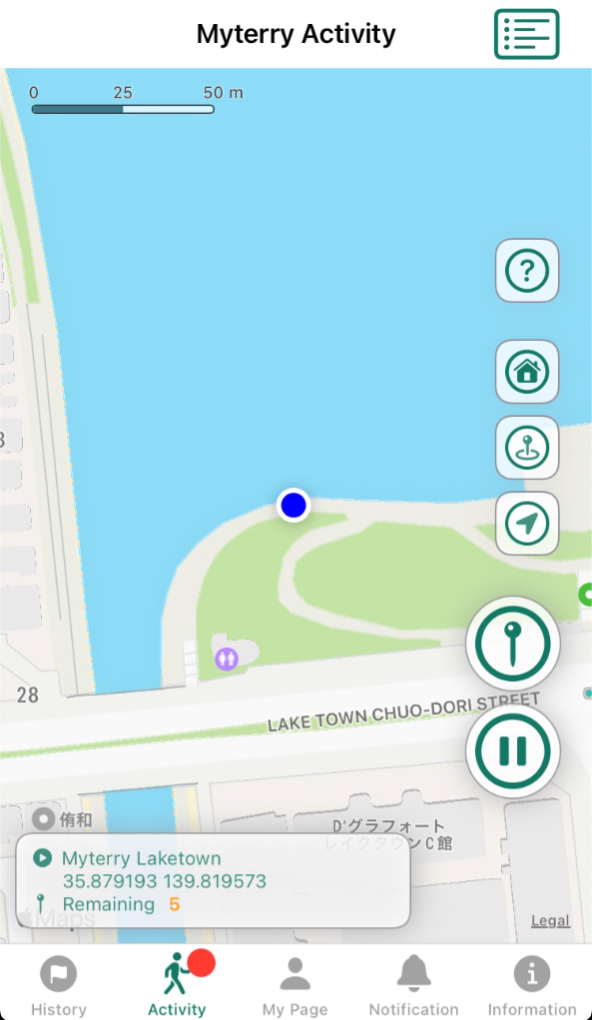
Once you start using Myterry, find your favorite spots that you’d like to mark within the radius you set from your home location.
We’ll proceed while checking our location and comparing the spot on the map with our actual surroundings.
Once you find a spot you like, tap the “Marking” icon, check the location, and proceed while comparing the spot on the map with the actual location.
2. Marking
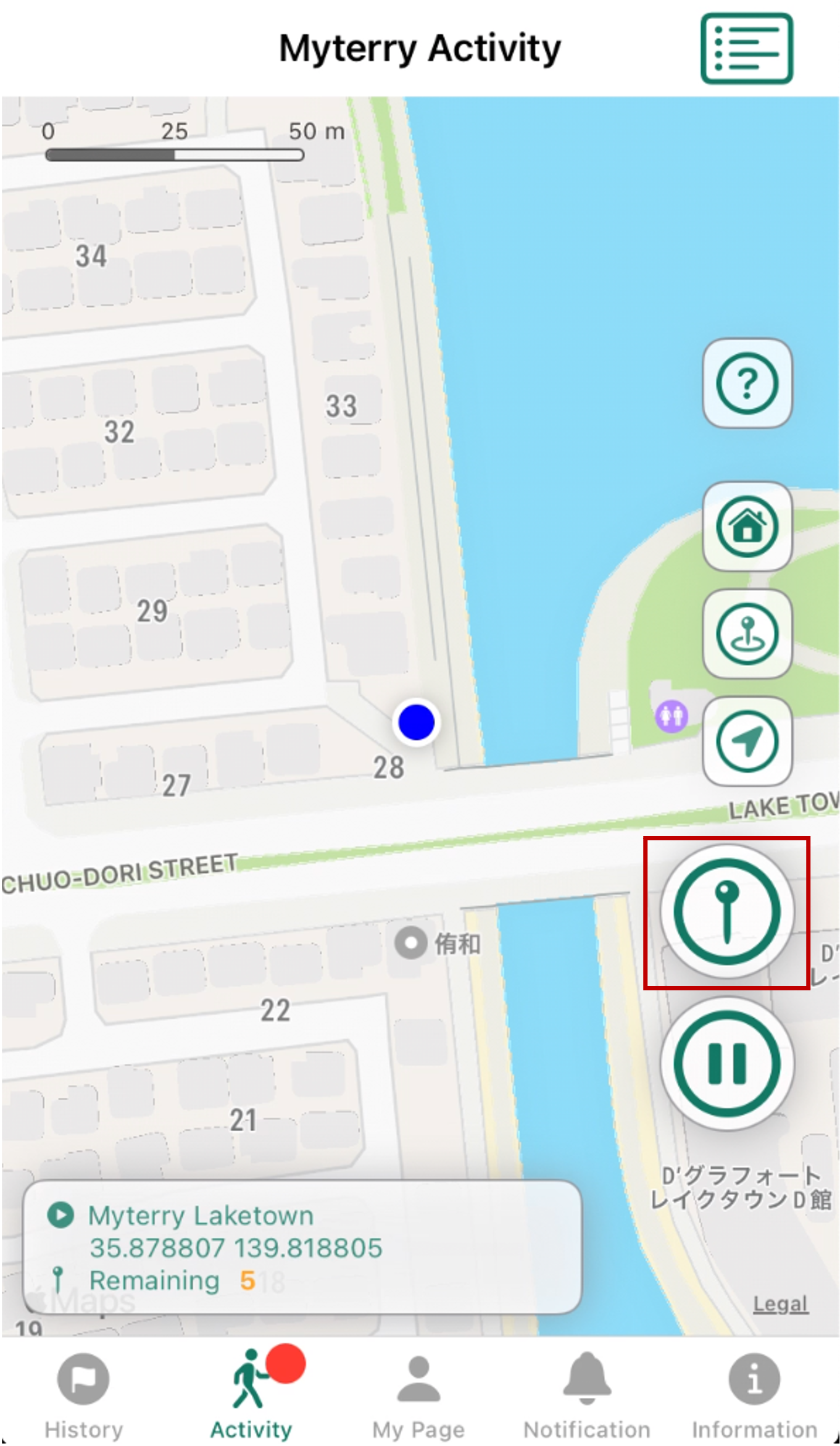
Once you find a place you like, tap the “Marking” icon (the round icon shaped like a pin) at that location.
When you tap it, a screen will open where you can take a photo of that location to mark it.
*You must enable the camera feature.
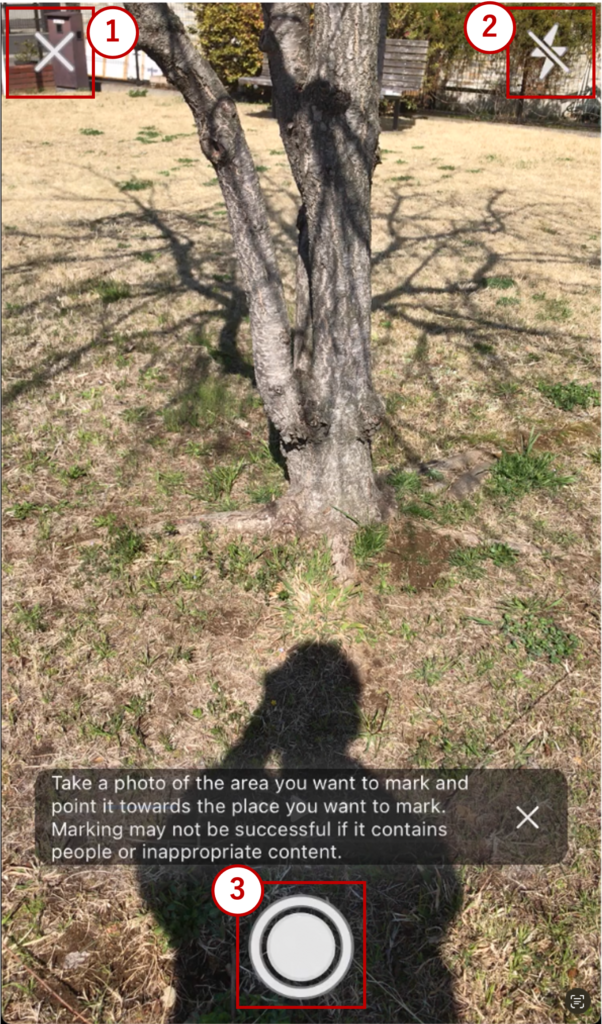
The camera screen will open; select the area you want to mark, then take the photo.
1. “Close” button: Cancels the photo
2. “Flash” button: Uses the flash when taking a photo. Use this when taking photos in dark places.
3. “Shutter” button: Takes a photo of the scene and saves it as an image.
Please be careful to ensure that the screen does not contain anything that could compromise people’s privacy. Otherwise, your submission may fail the review process during registration.
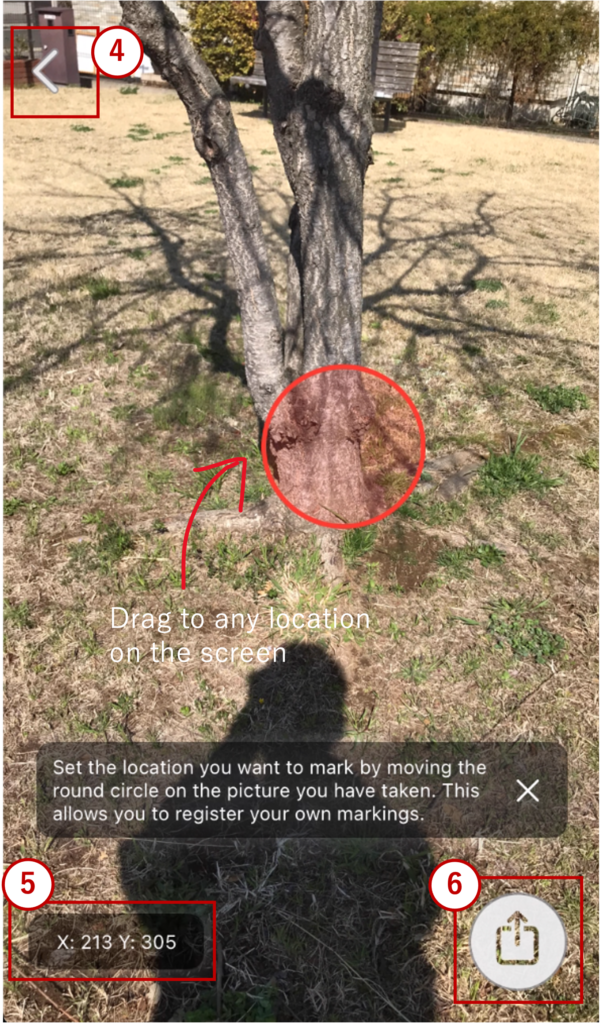
After taking the photo, drag the “circle” on the image to the specific location you want to mark.
*This action is used to record the marked location, and this information will also be used in features scheduled for future release.
4. “Back” button: Returns to the camera screen and takes another photo
5. Coordinate information: This refers to numerical values representing the horizontal (X) and vertical (Y) positions of a circle on the screen.
6. “Upload” button: Saves the marked location.
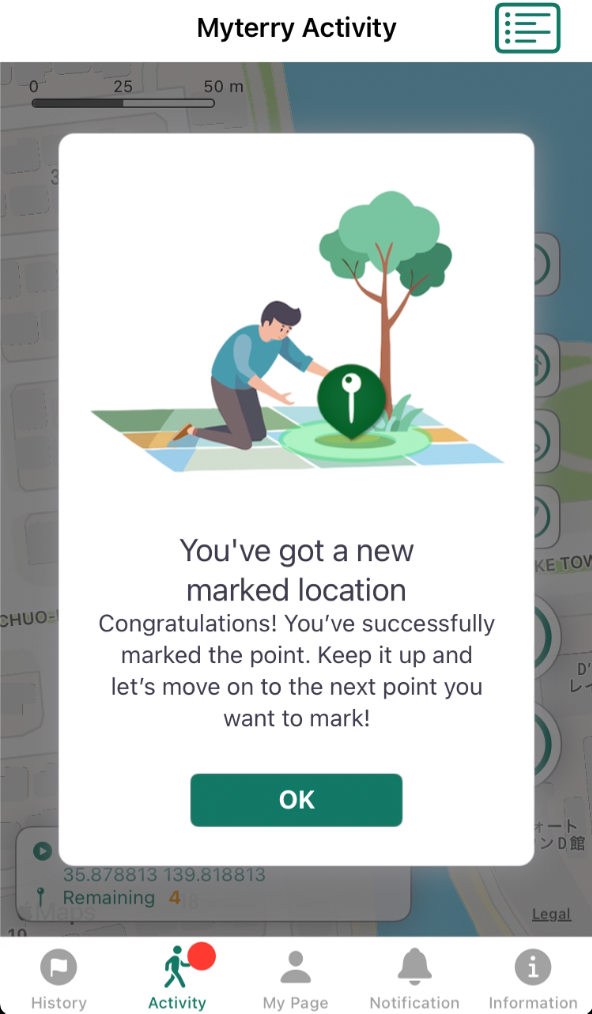
Once registration is successful, a message confirming that the marking location has been secured will appear.
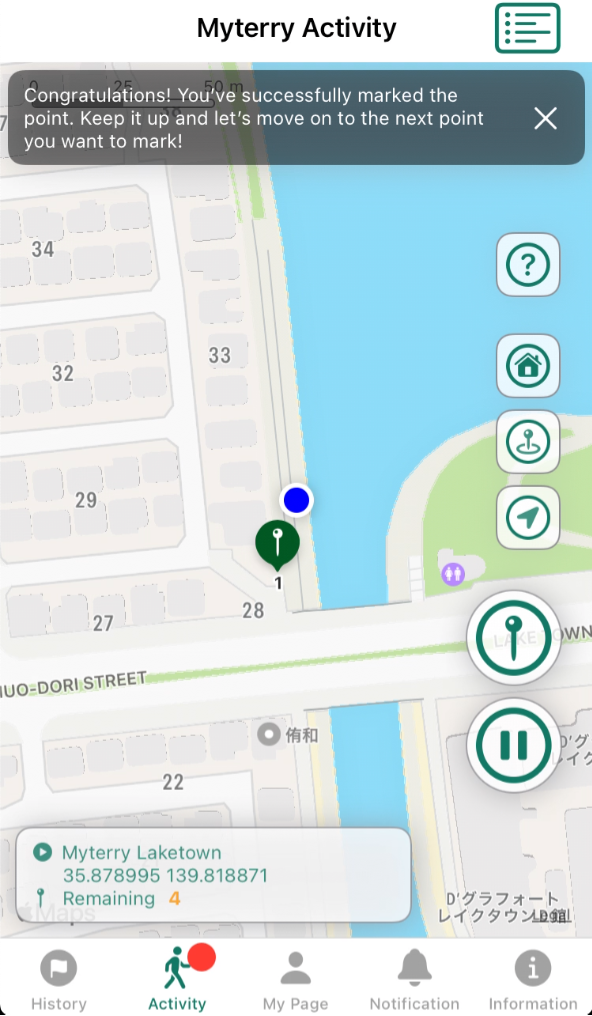
When you close the window by tapping the “OK” button, a marker icon will appear on the map at the location where the photo was taken.
Let’s keep going and place the rest of the pins!
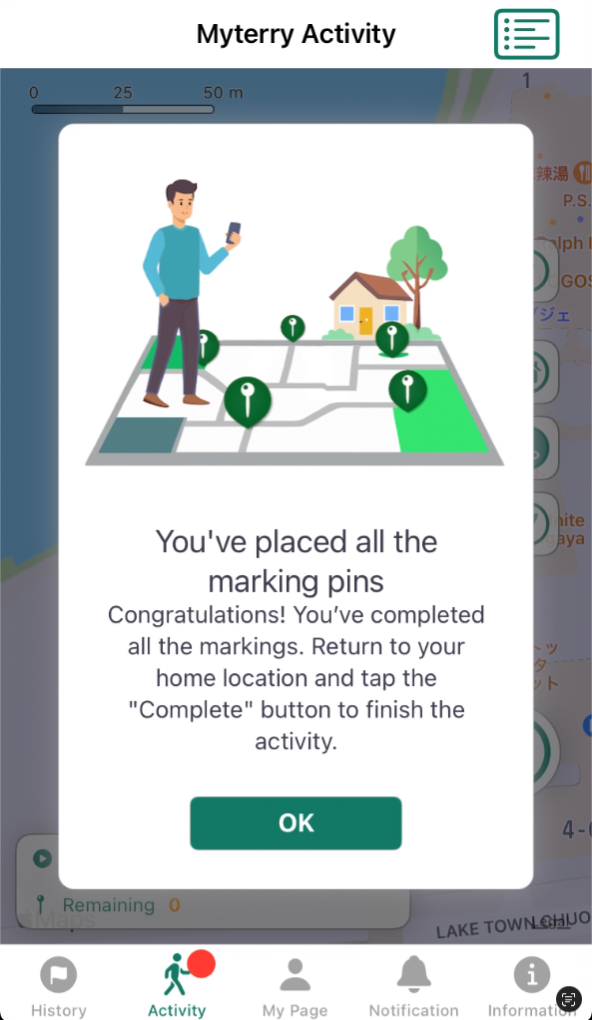
3. Place all pins and return to the home location
Once you’ve placed the final pin, the following message will appear. For the final step, return to your home location to complete the activity.
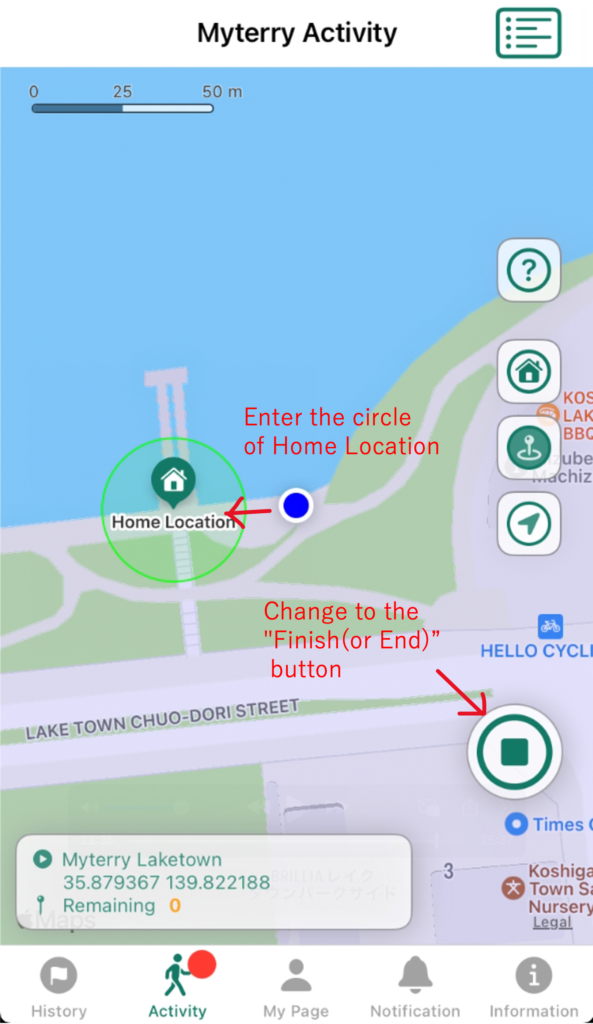
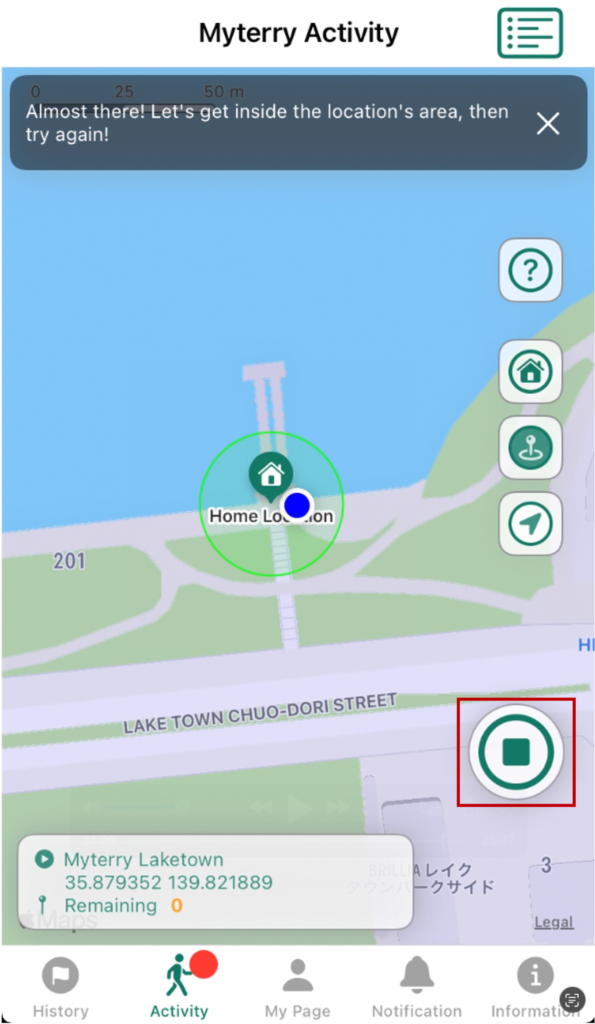
To complete the activity, return to your home location. The “Finish(or End)” button will appear, and a circle representing the radius around that location (the “Finish Zone”) will be displayed. To finish, you must enter the circle and tap the “Finish” button.
You’re almost there. Once you’re inside the circle, tap the “Finish” button.
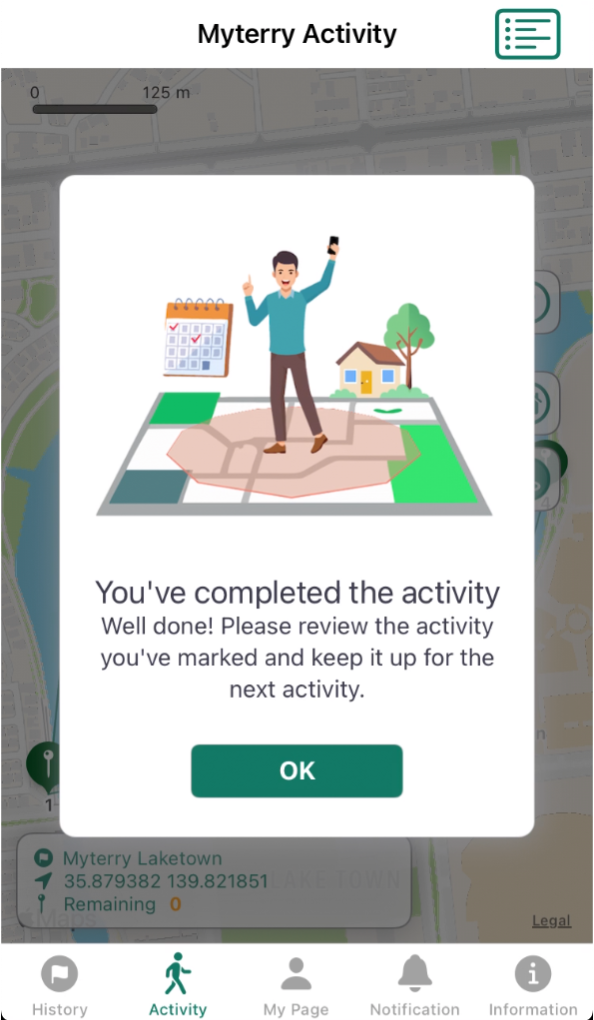
4. Acquire your Myterry!
Once you complete the activity, a completion message will appear on the screen, and you will acquire the Myterry.
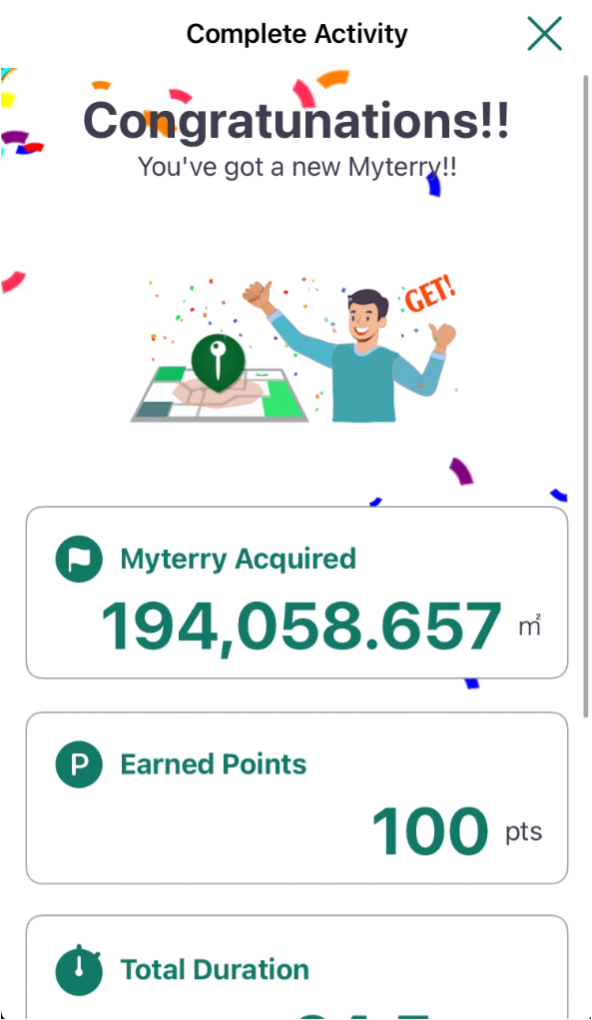
The activity summary screen will appear, allowing you to view the total time spent on the activity, the area covered, and the points earned.
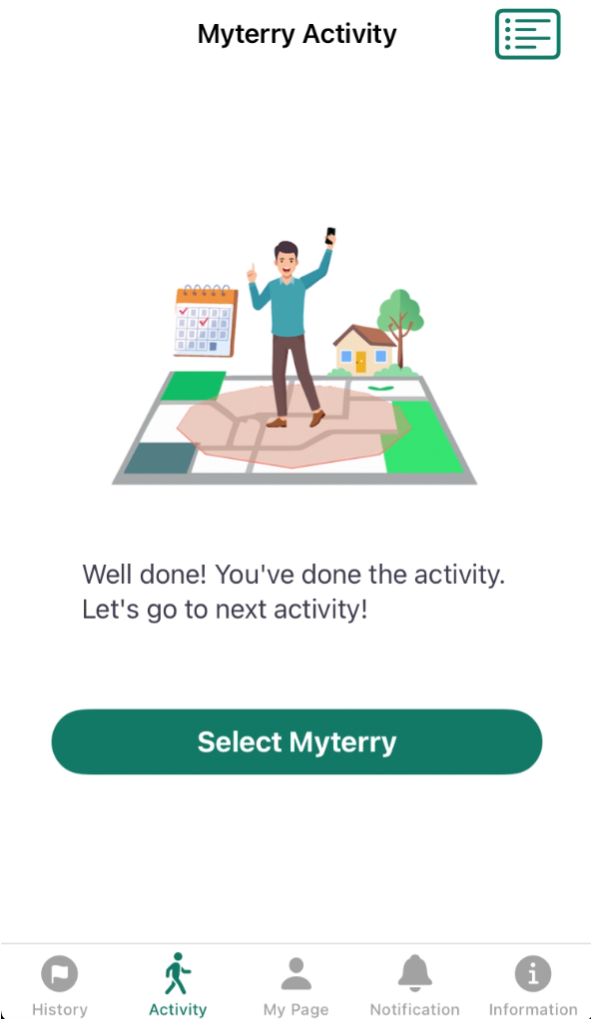
That completes the territory acquisition activity. You can view the details of your activity in the “Activity History” section.
Activities to Retain Myterry
You can retain the Myterry you have acquired by checking on it regularly.
Specifically, this involves returning to the locations you have marked and performing a “confirmation” action in the vicinity. You maintain your Myterry status by confirming all marked locations and returning to your home location to complete the activity.
By default, Myterry expires 30 days after it is earned, but you can extend this period by 30 days through patrol activities. Therefore, if you do not perform patrol activities and the deadline passes, your Myterry will be lost. This means you will lose the area of Myterry you have earned.
To ensure you don’t lose the Myterry you’ve worked so hard to earn, you need to check on it regularly and keep it active. Please note that you’ll earn points for retaining your Myterry. For more details, please see “Earning Points.”
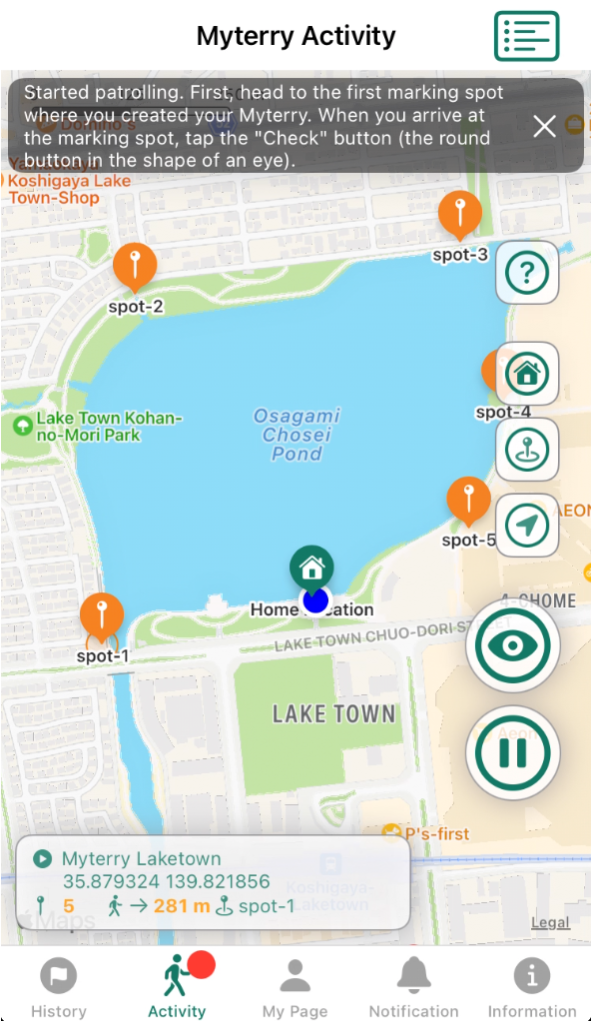
1. Let’s head to the marked spot.
Once you start your Myterry activity, check your home location and the locations you’ve marked on the map. A circle (geofence) will appear around the first marked location you should visit, indicated by a pin labeled “Valid Verification Spot.” First, head to that marked location where the circle appears, and complete your patrol there by performing the “Check” action within the circle.
While checking your location, proceed to the destination by comparing the location on the map with the actual location.
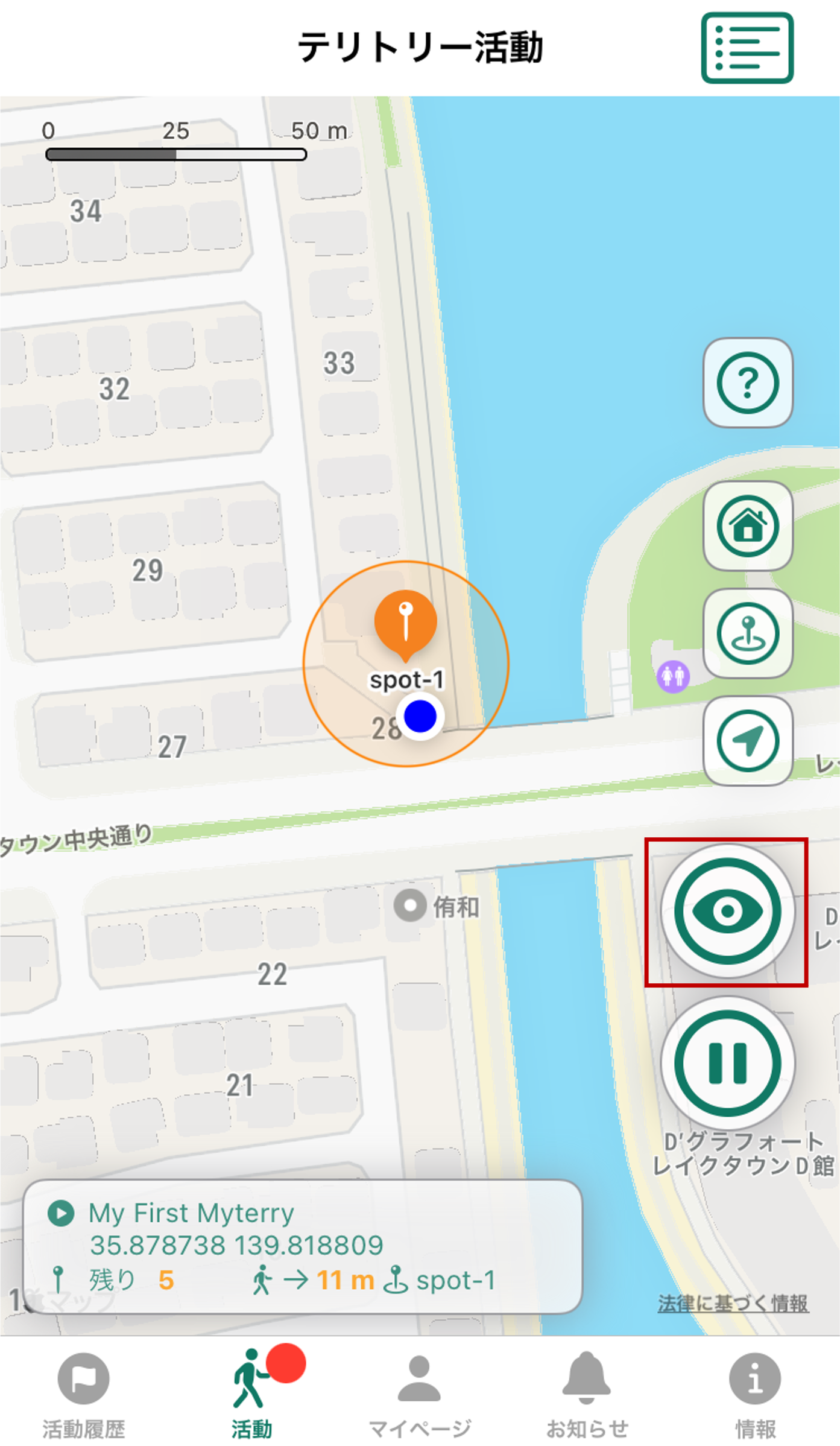
2. Complete the patrol at that location using the “Check” action
When your location falls within the circle around the placed pin, or when you find a place you like, tap the “Check” icon (the round icon shaped like an eye) at that location.
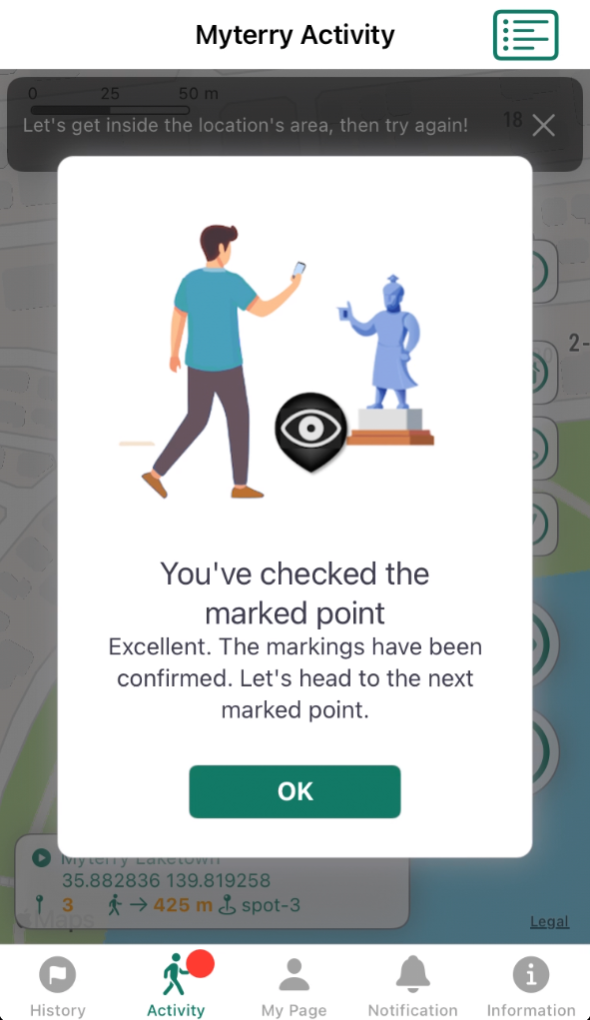
If the verification is successful, a message confirming that the marking location has been checked will appear.
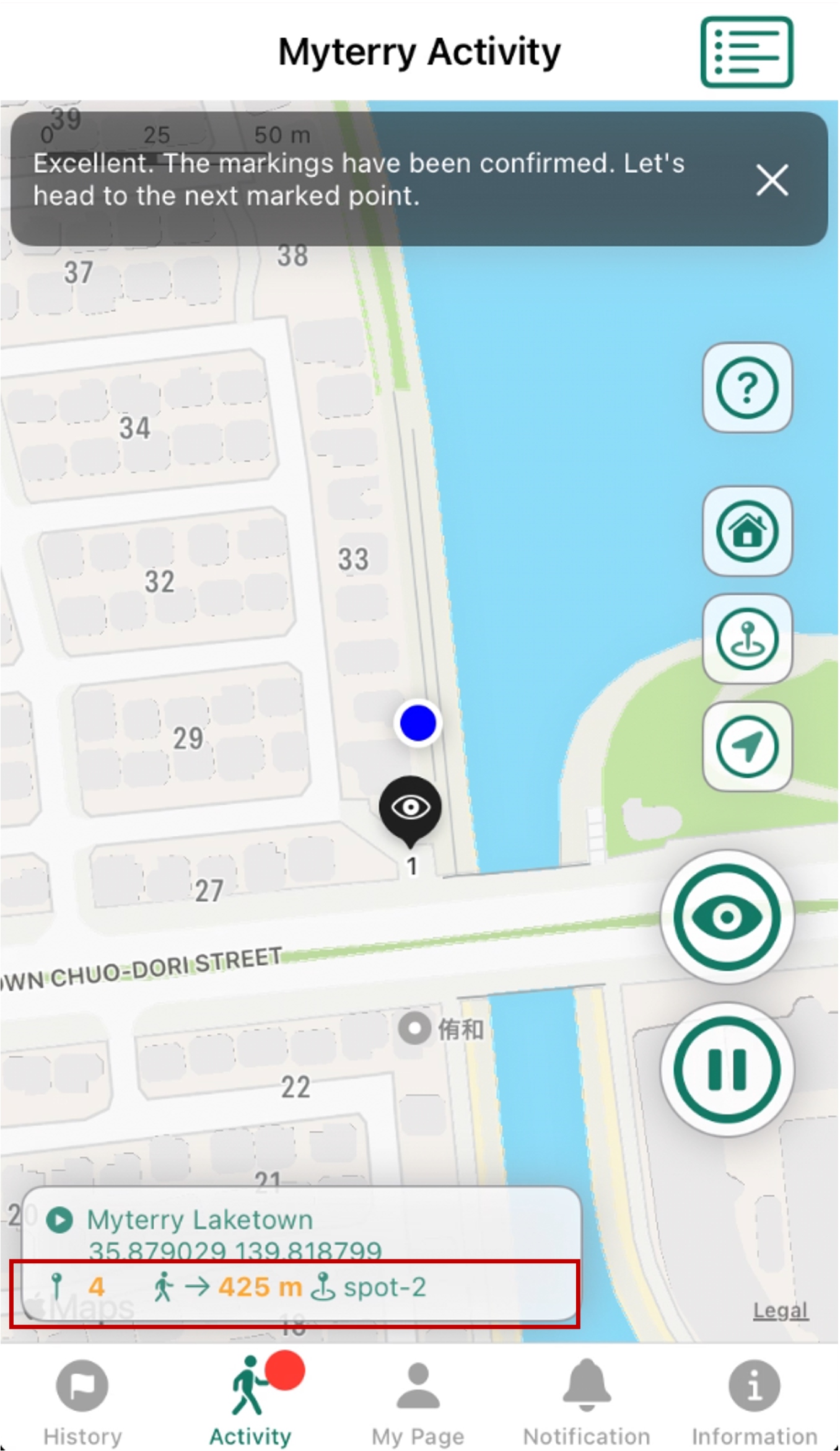
Once you’ve checked a location, it will change to “Marked” (a black icon shaped like an eye). In the current location box at the bottom left, the number of remaining locations to check and the distance to the next marked location will be updated.
A circle (geofence) centered on the same marker pin as this time will appear at the next marking location. Proceed to the next location and verify it in the same way.
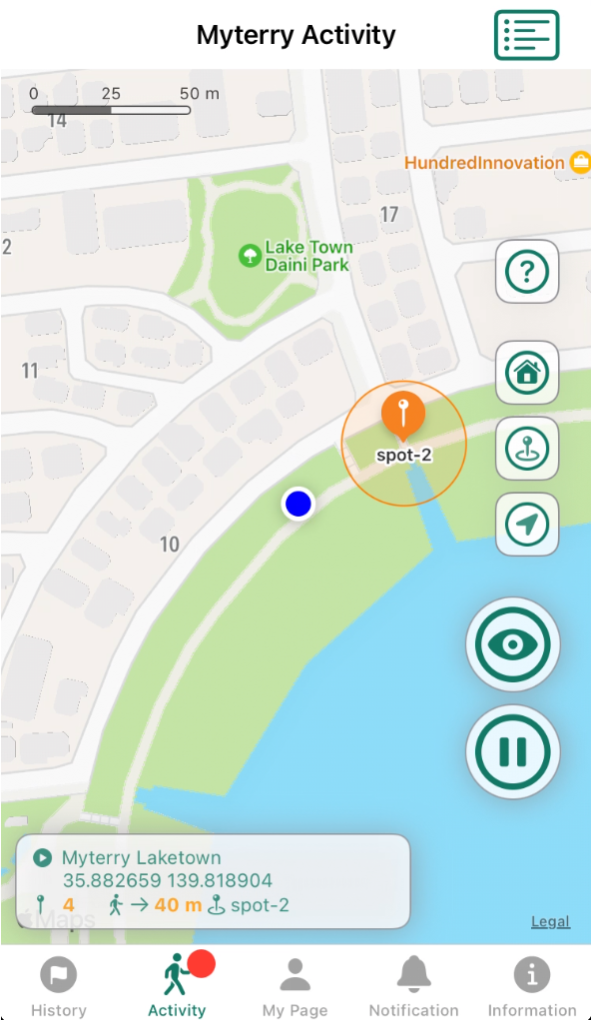
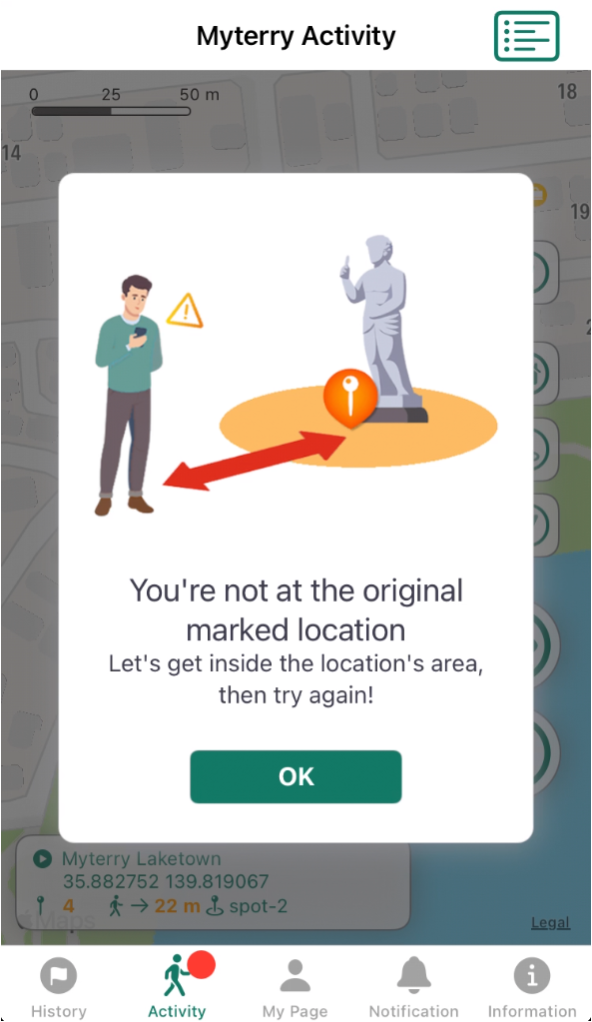
If you perform the “Confirm” action outside the circle
The “Check” action must be performed within the circle (geofence) defined by the placement pin.
If you take any action outside that circle, a message stating “You are not in the originally marked location” will appear. Please verify that you are within the circle and then tap “Check” again.
*Depending on when you tap “Check,” there may be a discrepancy between the location displayed on the map and the latitude and longitude data retrieved. As a result, the “Check” action may fail even if you are within the circle. If this happens, please wait a moment and try again.
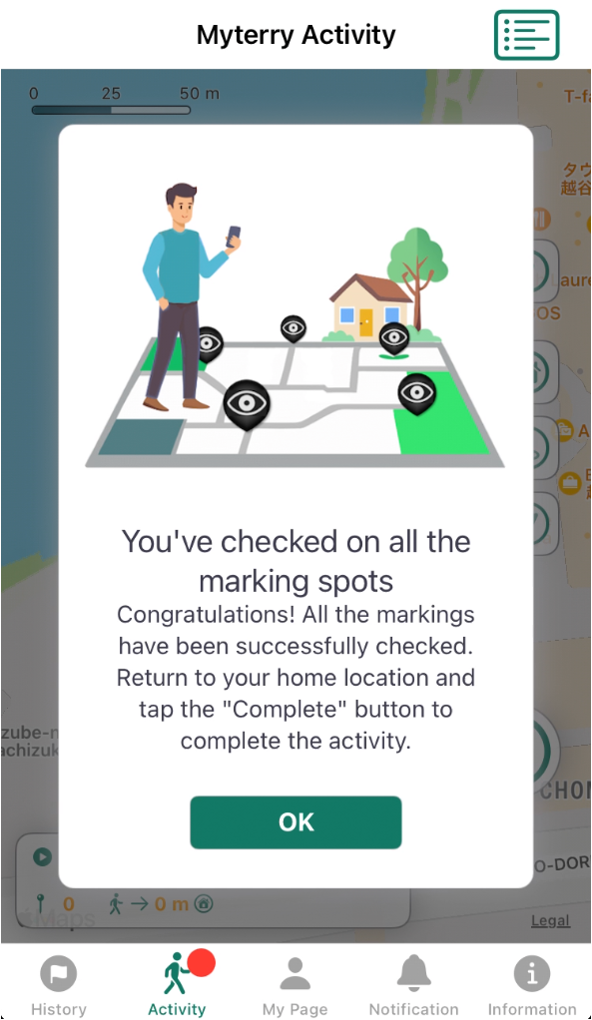
3. Check all pins and return to your home location
Once the final pin has been checked, the following message will appear. For the final step, return to your home location to complete the activity.
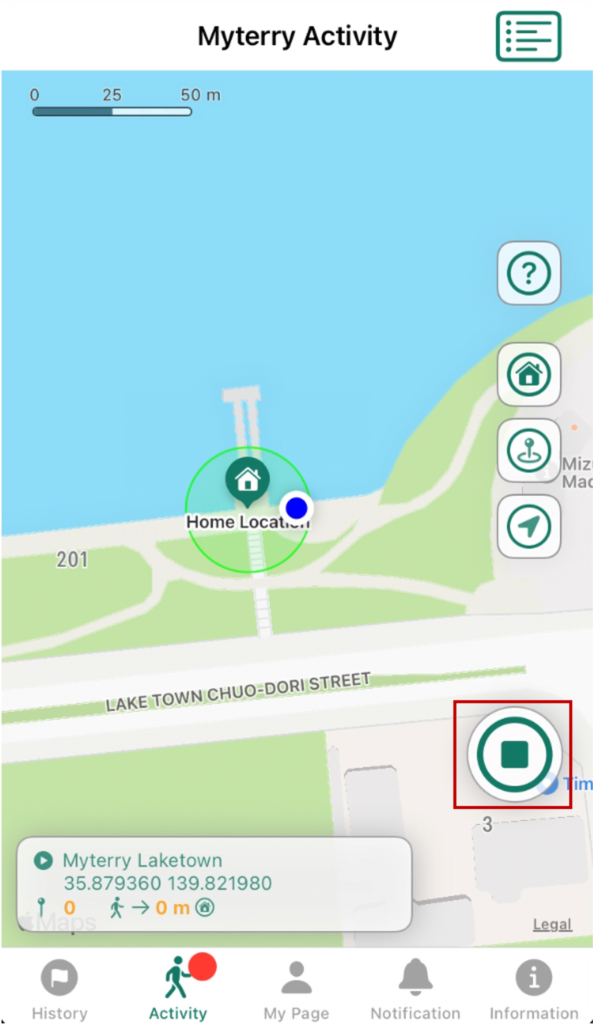
Just as you did when earning a Myterry, return to your home location to complete the activity. To finish, enter the circle and tap the “Finish” button.
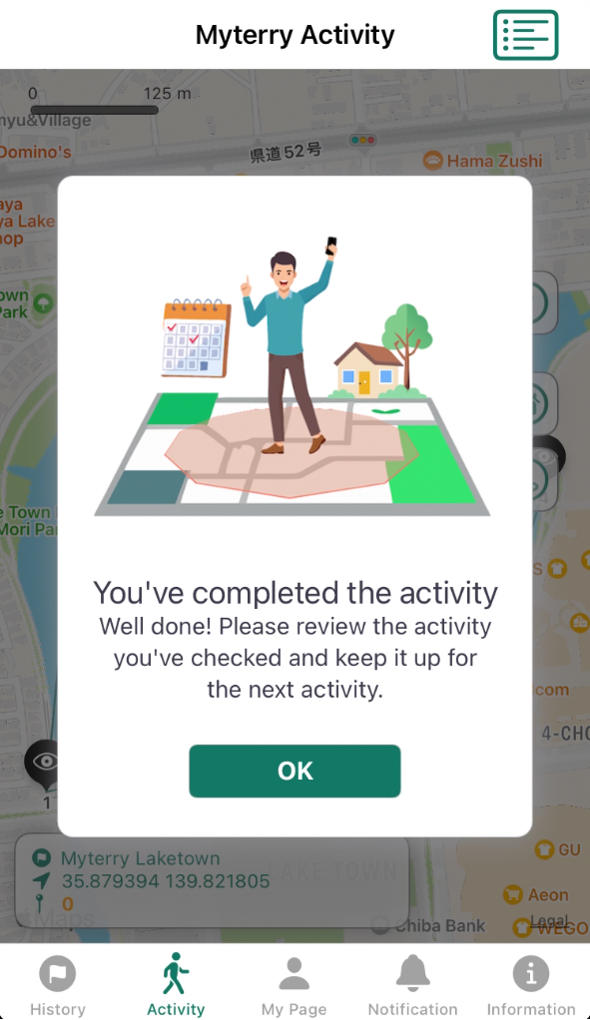
4. Great! You retained Myterry!
Once you complete the activity, a completion message will appear on the screen, and you can retain your Myterry status.
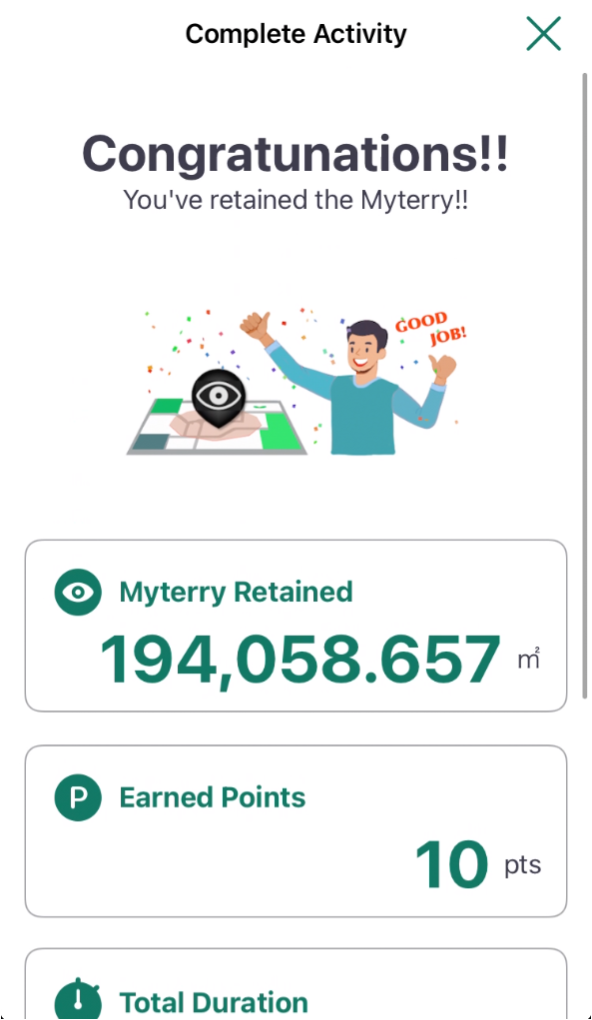
A summary screen for the completed activity will appear, allowing you to view the total time spent on the activity, the area covered, and the points earned.
Congratulations! You’ve successfully retained your Myterry.
How to Use
- Creating Your Account
- Reset or Change Password
- Main Menus
- Myterry Activities
- Myterry Features
- Points
- Delete Account