


To acquire a Myterry, you need to create one, place (mark) the assigned pins at your set home location, and claim the area enclosed by those pins.
To create a Myterry, go to “Activity Menu” > “Myterry List” and select “Create New Myterry.”
Creating a Myterry
From the Activity Menu, the main Myterry activity screen will be displayed. Open the Myterry List from there.
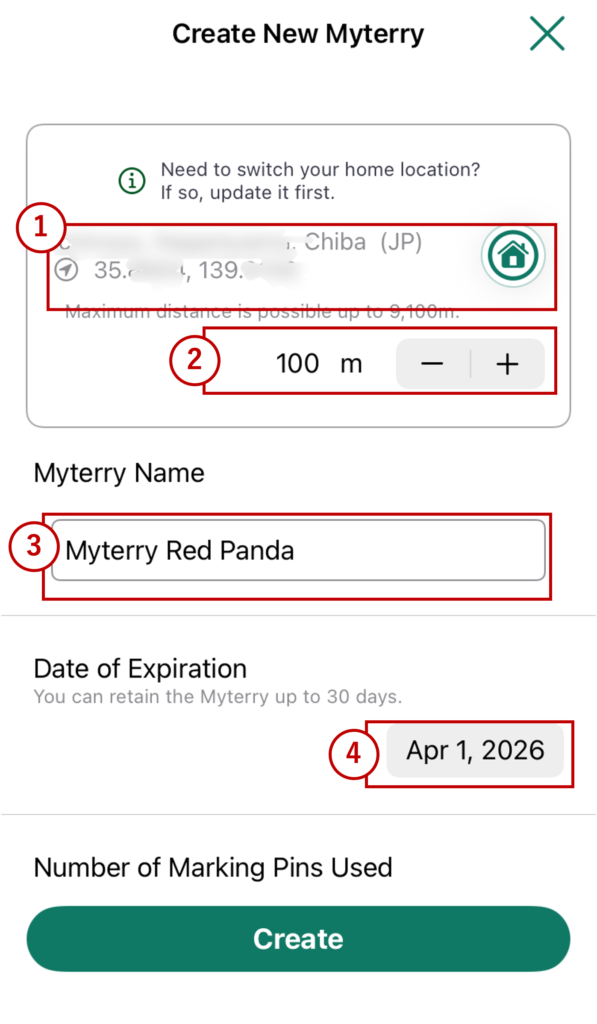
1. Home Location Setting
Displays the address and latitude/longitude information of your home location.
Tap the home location icon on the right side of the screen to open the Home Location screen.
2. Maximum Activity Radius Setting
Sets the radius from your home location within which you can expand your territory during Myterry activities.
The minimum is 100m, and can be adjusted in 50m increments. The maximum depends on your plan.
This radius can also be set from the Home Location screen.
3. Myterry Name
Enter a name for your Myterry. We recommend choosing a name that is easy to remember and one you feel attached to. The name cannot be changed once the Myterry has been created. The default value is randomly selected from animals (or insects) known for their marking behavior.
4. Expiration Period
Sets the period for maintaining your Myterry. The default value is the maximum allowed under your plan (typically 30 days). Generally, no changes are needed, but you can intentionally shorten the period to motivate yourself.
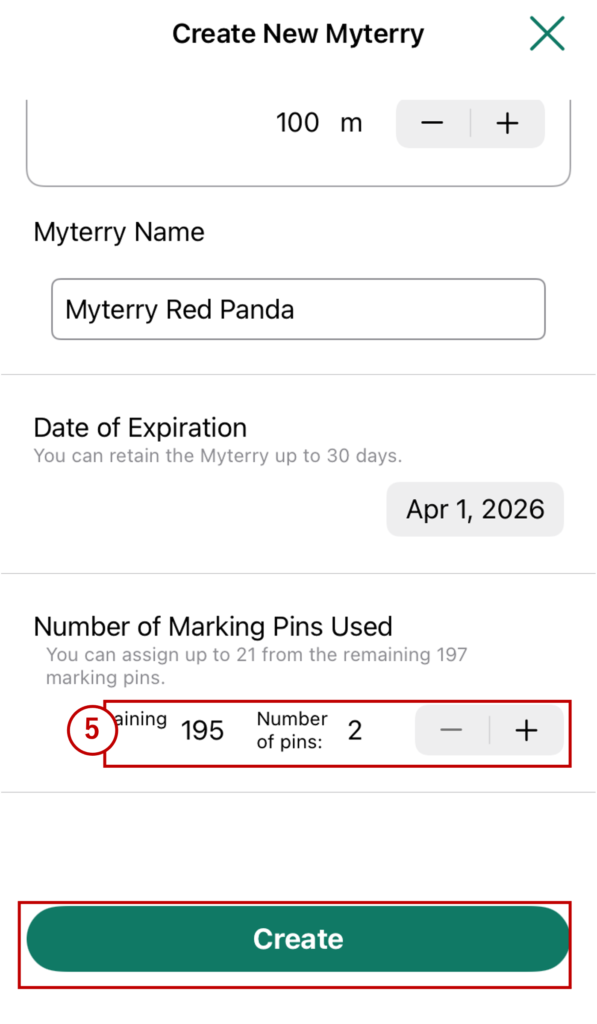
5. Number of Assignable Pins
Assign the number of pins you want to place in this Myterry activity from your total pin count. The minimum is 2, and the maximum depends on your plan.
Once all fields have been filled in, tap “Create” to create your Myterry.
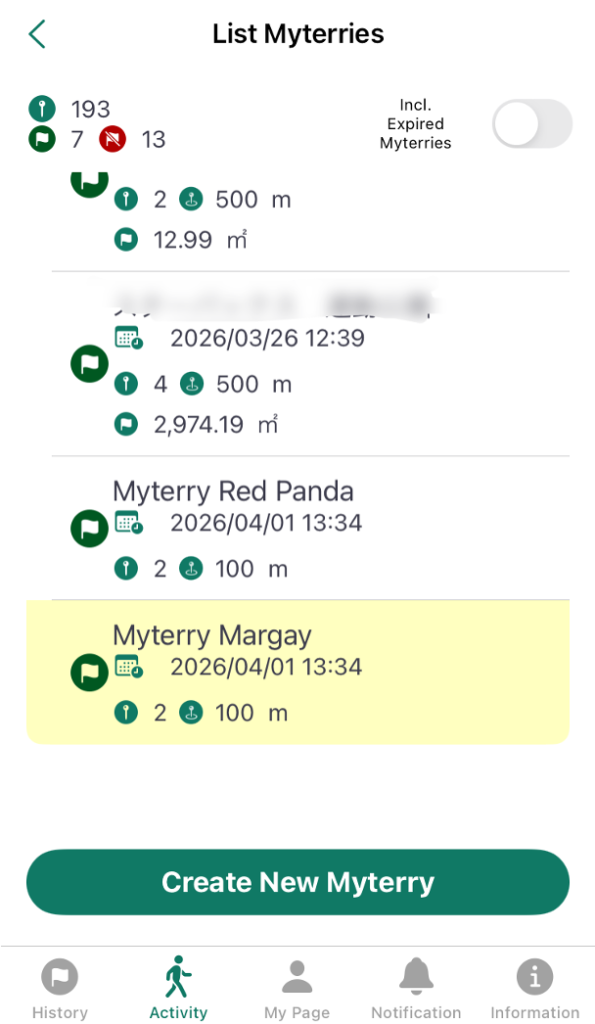
The Myterry will be created. The background of the newly created Myterry will be highlighted in yellow.
To start your Myterry activity after this, refer to “Check Myterry Activity Status” > “Start Myterry Activity.”
How to Use
- Creating Your Account
- Reset or Change Password
- Main Menus
- Myterry Activities
- View Myterry List
- Create Myterry
- Starting Myterry Activity
- Myterry Activity Menus
- Basic Flow of Myterry Activities
- Myterry Features
- Points
- Delete Account